
Guide · Season planning
How to Build an Annual Training Plan in 42Runs
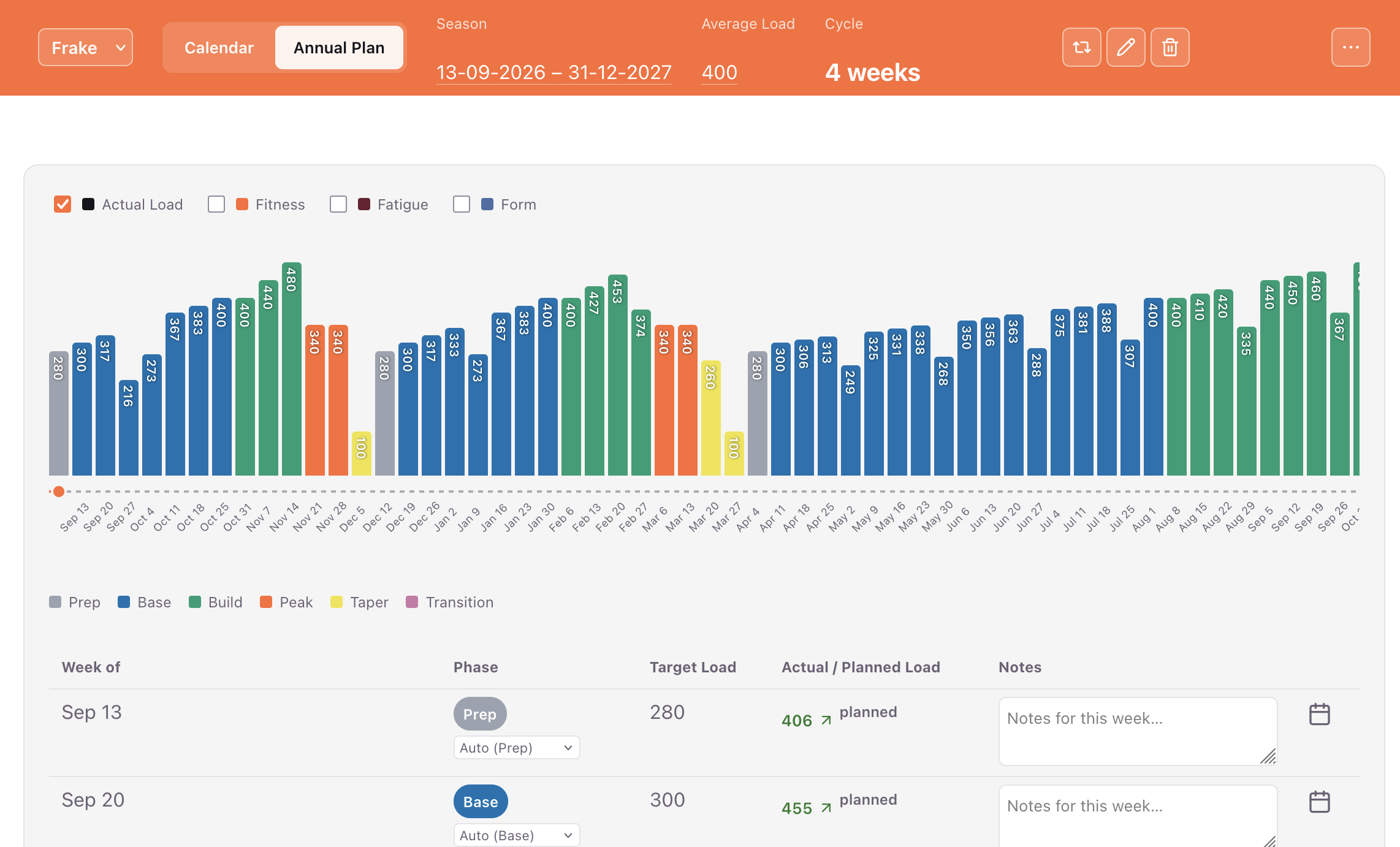
An annual training plan in 42Runs is a week-by-week map of the season: which phase you are in, and how much Load you are aiming for that week. You set the season dates, an average weekly Load, and a recovery-cycle length. Every A-priority race in that range gets its own Prep → Base → Build → Peak → Taper block. B-priority races only dip that week’s Load. C-priority races are trained through and do not change the map.
The plan is a visual guide, not a lock on the calendar. Dragging a bar does not rewrite your workouts. Filling the calendar — or adding a ready-made training plan — is a separate step. The Annual Plan tells you how hard a week should be. The calendar is where those sessions actually live.
You build and edit it on the web dashboard (Pro), under Annual Plan — not in the iPhone or Android app. A connected coach sees and can edit the same plan on the athlete’s Annual Plan tab.
What you need before you start
- A 42Runs Pro account and the web dashboard.
- At least one race marked A whose date sits inside the season you will set. Add races in the 42Runs app (Home) or in the web Races panel: name, date, distance, and priority A, B, or C.
- A rough idea of average weekly Load — the same Load unit as everywhere else in 42Runs. The setup form defaults to 300; change it to a number you actually hold in a normal training week.
Without an A-race in range, you cannot create the plan. The form will say so until you add or retag one.
Create the season
Open Annual Plan and set:
- Start and end date — the grid is Monday-based from the start date. The default end is about one year out.
- Average weekly Load — every phase is a percentage of this number. Changing it later recalculates the whole season.
- Build:recovery cycle — every 3rd or 4th week is a recovery week (about 78% of that week’s ramped Load). That is the usual 2-up-1-down or 3-up-1-down pattern.
The form lists which A-races will be targeted and which B-races will get a Load dip. Then tap Create Annual Plan.
You can keep more than one season on file. The dashboard shows the season that has not ended yet; an old season stays as history.
What the colours mean
For each A-race the plan builds a block from the previous race (or the season start) through race week:
- Prep — a short opener when there is enough time, at about 70% of average Load.
- Base — volume comes up from about 75% toward 100%, with recovery weeks in the cycle you chose.
- Build — continues the ramp from 100% toward about 120%, same recovery pattern.
- Peak — a short, slightly lower block (about 85%) before the taper, if the block is long enough.
- Taper — Load falls from about 65% toward about 25%. Length depends on race distance: about one week under 15 km (5K / 10K), two weeks from 15 km (half marathon), three weeks from 30 km (marathon). Shorter gaps between A-races compress the block; you still get a sensible shape, not empty weeks.
- Transition — after the last A-race, lighter recovery at about 50% Load, capped at four weeks — not the rest of the year.
If the season still has weeks after that, they settle into a calm maintenance Base (about 65% of average, still with recovery weeks). The plan does not invent another Build and Peak with nothing to aim at.
Two A-races in one season are chained: the first race’s taper, then a new Base → Build → Peak → Taper into the second.
A, B, and C in one line: A is a full block toward that day. B keeps the same phase and sets that week’s target to about 65% of what it would have been. C does not change the plan.
Use the chart, then the week table
On the chart, grab a bar and drag Load up or down. Release to save. The colour stays the phase unless you override it.
Toggles on the chart show Actual Load, Fitness, Fatigue, and Form. Past weeks use real data when watch history exists. Future weeks project Fitness, Fatigue, and Form from each week’s target Load. Measured weeks are solid; projected weeks are dashed. Those future lines are a sketch of where the map is heading, not a promise of what Home will show.
The week table is the same season, one row per week:
- Week of — that Monday, plus any race that falls in the week.
- Phase — auto from the plan. The dropdown can force a phase, or mark Injury / Illness or Training Camp. An override changes colour on the chart and on the calendar. The computed phase is kept underneath, so Recalculate can still reason about the real block when you clear the override.
- Target Load — the number the bar represents.
- Actual / Planned Load — finished weeks use real Load from completed training. This week and future weeks use the Load of workouts already on the calendar. Empty future weeks show “No data yet.” That is normal: the Annual Plan does not invent sessions. Within about 10% of target counts as on track; clearly under is flagged. It is a glance, not a pass or fail.
- Notes — saved on the plan. When you leave the field they also appear on the calendar as a Monday note (name only, no workout blocks). Those notes are not sent to the watch. Editing that note on the calendar does not write back to the Annual Plan.
- The calendar icon jumps to that month on Calendar.
What you will see on the Calendar
The Annual Plan does not fill Monday through Sunday with workouts.
It does tint the week Totals column in the phase colour, and show something like “Base · 320 target” under that week’s distance, time, and Load. Weekly notes appear as empty Monday items if you wrote them.
You still add sessions yourself, paste from your library, or apply a plan from the library. Watch sync happens when those real workouts are saved — same as any other calendar session.
Fill weeks to match the map
Treat target Load as the budget for the week.
- Base and recovery weeks — more easy volume, less intensity. A recovery week should land near the lower bar.
- Build and Peak — more specific work. Keep the week total near the bar, rather than stacking a surprise spike on an already high target.
- Taper — fewer or shorter sessions so Planned Load falls with the bars.
- Transition — keep it light. The plan is telling you not to start another Build yet.
Home and Insights still show Fitness, Fatigue, and Form from what you actually did, not from the Annual Plan targets. If the overlay’s future Form looks too negative, lower the bars or put less on the calendar. The map does not auto-cut your week.
How the mix of sessions should shift across a season is covered in the running abilities guide.
When the season changes
- A new A-race after the last A already on the plan (still inside the season) rebuilds the tail toward that race. Earlier weeks you already dragged stay put. A short status line confirms the extension.
- An A-race earlier than the last targeted A is not applied automatically — that would rewrite a block you may have tuned. Use Recalculate, or Edit → Save & Recalculate, when you mean it.
- A new B-race dips that week’s target once. The phase does not change.
- Edit season dates or average Load in the top bar to recalculate from the current A and B races.
- Cycle length only changes via Edit Plan.
- Recalculate rebuilds every week from scratch from races currently in range. Manual bar drags in those weeks are lost.
- An ended season locks Recalculate, Edit, and Delete. Start New Season creates a new document; the old one remains history.
- Delete removes that plan document. Calendar workouts stay.
What this plan does not do
It does not assign Tuesday intervals or a long run. It does not replace adding a training plan from the library. It does not sync empty notes to a watch. Target Load is not enforced as a hard rule against the calendar; if you ignore the bars, nothing blocks you.
A simple order that works
- Put the A-race (and any B or C races) on the calendar.
- Create the Annual Plan on the web.
- Glance at taper length and recovery weeks; drag a few bars if life does not match the default.
- Mark injury or camp weeks with the phase dropdown.
- Fill the next one to three weeks on Calendar so Planned Load is in the same neighbourhood as the target.
- Repeat as the season moves. Recalculate only when the race list actually changed.
Open app.42endurance.com → Annual Plan to start. Coaches: the same view is on each athlete — see also what a coach can see and For Coaches.